Troubleshoot: Google Workspace Integration
I received a ‘This app is blocked’ error when trying to authorize the sync.
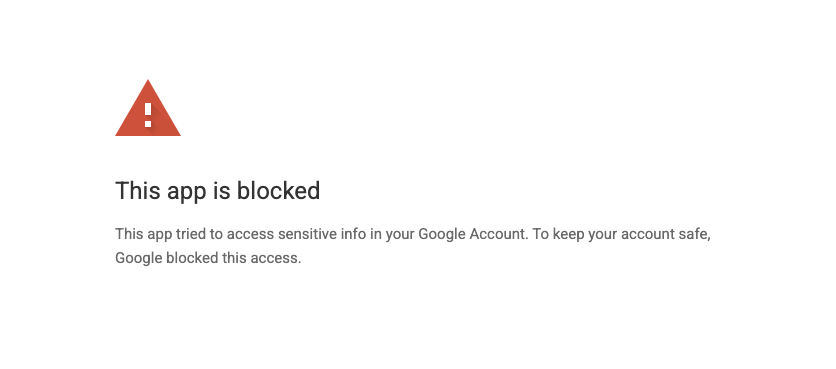
Cause: New granular OAuth permission checks were released by Google in February 2026.
Resolution: Add JumpCloud as a 3rd party app in Google and mark it as "Trusted".
- Open the Google Admin console.
- Select Security > Access and data control > API controls.
- Click Manage app access.
- Select Configure new app,
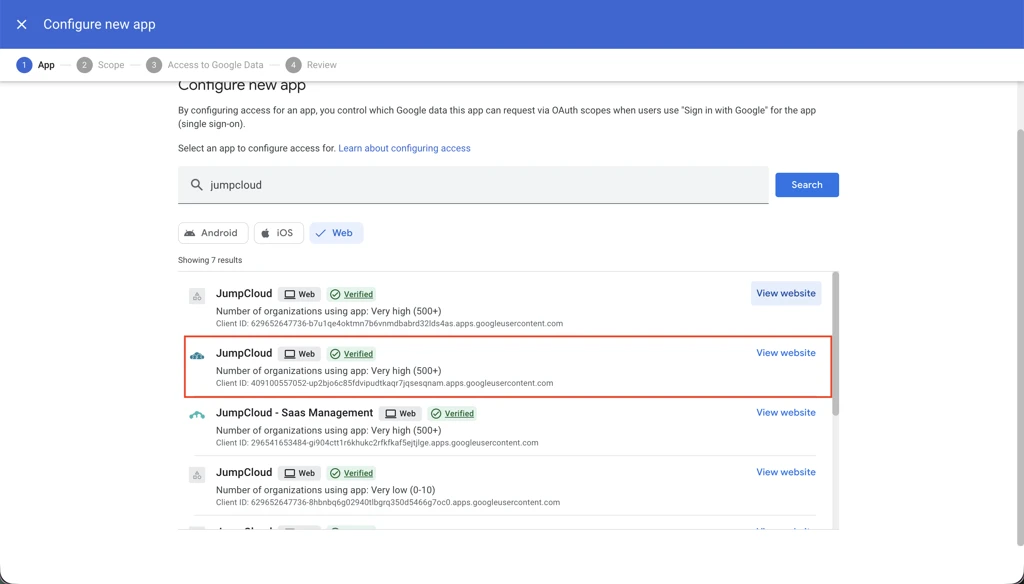
- Enter 'JumpCloud' in the Search for app field, then click Search.
- Select JumpCloud app pictured below with the following Client ID, define the scope, and then click Continue:
- Client ID: 409100557052-up2bjo6c85fdvipudtkaqr7jqsesqnam.apps.googleusercontent.com
- Select Trusted.
- Click Continue again and then click Finish.
- If successful, you will receive a message saying JumpCloud is now trusted to access all Google services.
After a user changes their password and is logged out of their Google session, 2-Step Verification only asks for a backup code when trying to log back in.
Cause: The users do not have a secondary/additional form of MFA.
Resolution: Ensure users have a secondary/additional form of MFA, like Authenticator (TOTP)or 2-Step Phone verification phone*.*
I made group membership changes and then bound the group to the Google Directory – the removed users are now suspended.
Cause: When users are removed and the directory is added in the same save action, the group members are synced in the group's original state and then the removed users are updated to indicate they no longer have access.
Resolution: The change in membership and then adding the directory must be completed in two separate steps. Remove the user(s) and save the group. Then, add the directory and save the group again.
500 Error when attempting to import Google Workspace Users.
When using the Google Apps User Provisioning and Sync utility, administrators occasionally receive a 500 Error during the import process. This occurs after an admin has successfully established an OAuth connection and attempts to import users.
Cause:
The most prevalent cause of this is the Google Apps account itself not having API Access enabled under admin.google.com > Security > API Reference > API access.
Resolution:
We recommend that you enable the API access setting and re-attempt to import users.
Unable to fetch users data when importing users
Cause: This might happen due to the broken connection between GWS and Jumpcloud integration.
Resolution: To resolvethe issue we have Reactivate the Sync. This will fix the connection again and the users will get imported to Jumpcloud Successfully.
Below are the steps to reactivate the GWS sync in Jumpcloud admin console.
-
Log in to the JumpCloud Admin Portal.
-
Navigate to INTEGRATIONS>Cloud Directories.
-
Select the Google Workspace directory for which you want to reactivate sync and click reactivate sync.
-
Follow Google’s prompts to authorize JumpCloud.
Reactivating either with the same Google admin account or a different Google admin account will not disconnect users from the integration or disconnect their active Google Workspace sessions. It will also not send any notification to users.
My import functionality is enabled in Google, but is failing when importing attributes to JumpCloud. Exporting attributes to Google is working.
Problem: You may face issues while importing Google Directory attributes to JumpCloud even when the “Import” option is enabled in the Google directory integration page. You may find that Exporting attributes from JumpCloud to Google is working, while Importing is failing to update the user information under the “Details” tab.
Resolution: This issue often occurs because the Automatic Import setting is disabled, which prevents Google attributes from syncing back to the JumpCloud console.
- Log in to your JumpCloud Admin Console.
- Navigate to Identity Management > Cloud Directories.
- Select your Google Workspace instance.
- On the Details tab, scroll down to the Import Users section.
- Find the toggle labeled: "Enable automatic imports of users and user updates from Google."
- Switch this to ON.
- Click Save.
The advanced filter I entered is not returning the expected results.
Double-check the filter with these examples of advanced filters.
Updates made in Google Workspace are not being imported into JumpCloud.
This can be a timing issue. Try to import the updates again by doing a manual full sync or update only sync or wait for the next automatic import to run.
A JumpCloud user bound to Google Workspace does not synchronize as expected.
- If provisioning from JumpCloud to Google, the user might not show up in the Google Apps Admin Console.
- Previously provisioned users don’t synchronize new passwords when reset in JumpCloud.
Cause:
The username and/or password doesn't comply with Google's name and password guidelines.
Resolution:
Make sure the Gmail username and password comply with Google's guidelines.
If the above resolutions don't solve the issue, contact your JumpCloud administrator to verify your account status and assist in troubleshooting. If signing up for service, please submit a support request and confirm the email address being used in the form.
Alternate Resolution:
Add JumpCloud as a Trusted Third-Party application.
The password is not syncing for a user.
- Verify that the password attribute is set to Export in the Attribute Mappings and Settings section of the configuration.
- Check if the user is a super admin.
- If yes, verify that the account used to authorize the integration was a super admin. If not or if you are unsure, reactivate the integration with an account that is a super admin account.
- If the user is not a super admin, consult the DI events and the Google audit logs.
New JumpCloud users don’t appear in Google Workspace.
When a new user is created in JumpCloud, their account is not synchronized to and does not appear in Google Workspace list of users. Existing users will synchronize without issue.
Cause:
The Google Workspace instance has run out of available license seats.
Resolution:
Increase the number of seats in your Google Workspace instance.
I’m trying to import a user from Google into JumpCloud, but I’m getting the following message: “ has already been registered”
Cause: This issue occurs because the integration automatically sets the user’s JumpCloud username to the prefix of their Google email address (the part before the @ symbol) during import. This prefix already exists as a Username or Local User Account for an existing user in your JumpCloud organization.
Resolution: There are a few options for resolving this issue.
- Create a matching JumpCloud account: Manually create the user in JumpCloud with just their Google email address and a unique username. Then, use the Google Workspace Cloud Directory manual import functionality to update the user record with the rest of the user information from Google. You can use an import filter to limit the update to just that user, if needed. See Using the Google Workspace Integration to learn more.
- Update the email address in Google: Change the prefix to something unique and not used in JumpCloud. Note that this may have impacts on the end-user.
- Update the JumpCloud username: Change the existing JumpCloud username or Local User Account to avoid conflicts. This requires disconnecting the user from all resources and may cause service disruptions.
“Error 400: admin_policy_enforced”
When you attempt to authorize the Google Workspace Directory integration using a Super Administrator account, you can receive an “Error 400: admin_policy_enforced” error message.
There are three common causes for the "Error 400: admin_policy_enforced" message:
Cause 1:
API Access is Restricted.
To fix this and Enable API Access:
- Log in to the Google Workspace Admin Console.
- Go to Security > API Controls > Manage Google Services
- FindGoogle Workspace Admin and select Change Access
- Select Unrestricted: Any user-approved app can access a service to enable API Access
Cause 2:
One of the systems is disabled.
To fix this and enable systems:
- Log in to the Google Workspace Admin Console.
- Go to Security > API Permissions.
- Enable any disabled systems:
Cause 3:
URL Blocking is blocking necessary URLs like the GAM client_id.
To fix this and unblock necessary URLs:
- Log in to the Google Workspace Admin Console.
- Go to Devices > Chrome Settings > User Settings.
- Confirm that necessary URLs aren't blocked.
Receiving “errorMessage”: “rpc error: code = InvalidArgument desc = failed to insert user (object_id=63920e92df34b6cc1fc5eb6e): googleapi: Error 400: Invalid Given/Family Name: FamilyName, invalid”.
Cause: LastName is missing.
Resolution: Verify the user has a valid Last Name.
I am trying to specify a distribution group, but I cannot add an email address.
Ensure that Enable management of groups and memberships in Google Workspace is enabled. Once it is enabled, click Save. You should see the Distribution Group Email column.
I am getting a “This app is blocked” error when trying to add a Google Workspace domain to JumpCloud.
Cause: There are pre-existing restrictions or security measures that prevent access
Resolution: Use the following steps to resolve this issue:
- Navigate to the Google Workspace Admin dashboard.
- In the top search bar, search for and select API Controls.
- Under App access control, click MANAGE THIRD-PARTY APP ACCESS.
- Search for the name "JumpCloud" or the matching ID and click Change Access.
- Select Trusted and then click Continue.
- Once this done, admins would be able to successfully add domain to Google Workspace in JumpCloud.
Admin accounts are not syncing from JumpCloud to Google Workspace
Cause: The account used to create the integration does not have sufficient privileges
Resolution: An account with super admin privileges is required by Google to sync admin user passwords and user attributes .
Google Workspace users are automatically suspended after being provisioned from JumpCloud.
Cause: This issue is a security measure from Google's end, often triggered when a large number of user accounts are created at once.
Resolution: Ensure JumpCloud is listed as a trusted application in Google Workspace. This tells Google that the provisioning activity is legitimate and not a security threat.
Add JumpCloud as a trusted application in GWS
- Log in to your Google Workspace Admin Console.
- In the left-hand navigation menu, go to Security > Access and data control > API controls.
- Under App access control, click on MANAGE THIRD-PARTY APP ACCESS.
- At the top of the page, click on Configure new app.
- Select OAuth App Name Or Client ID.
- Search for JumpCloud and select the correct application from the search results.
- Click SELECT.
- Under the Select Access section, choose Trusted: Can access all Google services.
- Click CONFIGURE to save your changes.
If the suspension persists even after JumpCloud is configured as a trusted application, the issue is likely due to an internal security policy on the Google Workspace side. In this case, you will need to contact Google Workspace Support for assistance.
For more information, refer to Google's Restore a suspended user article.
Google Workspace passwords do not work for JumpCloud login by default
Customers may report the following:
- Unable to log in to JumpCloud using their Google Workspace password
- Expectation that Google and JumpCloud passwords should match
- Confusion around SSO versus directory sync
- Belief that password sync is broken or misconfigured
Cause: If you have only connected Google Workspace as a directory integration, JumpCloud does not use Google passwords for authentication. JumpCloud never pulls or stores Google Workspace passwords.
Resolution: To use Google credentials for login, Google Workspace must be configured as an Identity Provider (IdP) in JumpCloud. Until that is done, users must continue using their JumpCloud password.
After I remove a user from the GWS Integration, the user still remains connected.
Symptoms: When attempting to unbind a user from a directory integration via the Directories tab in the User's details, the "Save" action completes but the user remains bound.
- Changes to directory bindings do not persist after refreshing the Admin Portal
- The administrator is unable to safely delete a user in JumpCloud because the external directory link remains active, risking a deletion or suspension sync to the external provider
Resolution:
- Identify Group-Based Bindings: Determine if the user is bound to the directory via a User Group. In JumpCloud, group-level permissions often override individual manual changes.
- Remove User from Synced Groups: * Navigate to Users and select the affected user.
- Click on the User Groups tab.
- Uncheck the group(s) that are currently synced to the external directory (e.g., the group linked to Google Workspace).
- Click Save User.
- Verify Unbinding: * Navigate to the Directories tab for that user.
- Confirm that the directory is no longer selected/bound. If it was removed via the group, the icon should no longer appear next to the user's name in the main User list.
- Trigger Manual Sync (If Necessary): * If the status does not update immediately, navigate to Directory Integrations > [Specific Directory].
- Click Reactivate Sync (for Google Workspace) or the equivalent sync trigger to ensure JumpCloud and the external provider are aligned.
Google Workspace password resets do not update on Windows devices.
Description: When Google Workspace is configured as the identity provider, password changes are managed in Google. However, these password updates do not automatically sync down to Windows devices through JumpCloud. This means that even if the password is updated in Google Workspace and synced to JumpCloud, the endpoint device may still rely on previously cached credentials or local authentication methods.
Symptoms:
- Password reset in Google Workspace does not work on Windows devices
- On some devices, the JumpCloud login option is not visible
- Users can log in using existing credentials but the password is not updated
- On other devices, users can log in but only using PIN
- After resetting PIN, login with the new password still fails
- Different behavior across devices for the same user
Resolution: This behavior is expected. Password changes made in Google Workspace do not sync directly to Windows devices via JumpCloud. As of now, this functionality is not supported.
Workarounds:
- Have users log in with existing cached credentials and update access as needed
- Use JumpCloud-managed passwords if consistent device login behavior is required
- Ensure users understand that Google password changes will not immediately reflect on device login
Additional Resources
Was this information helpful?