Windows Overview and Patch List
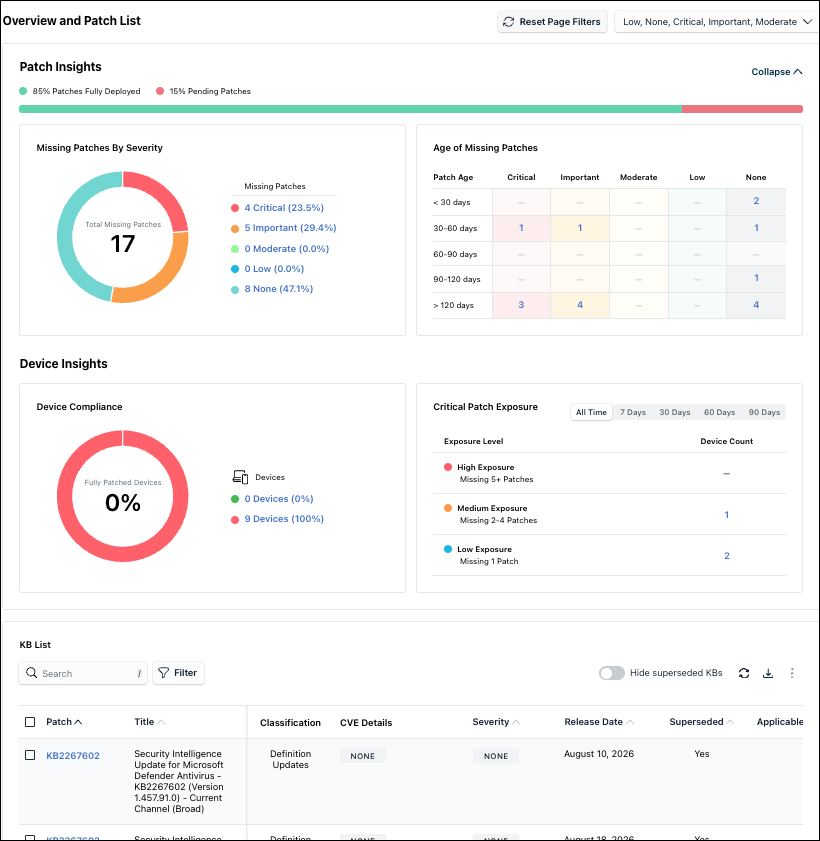
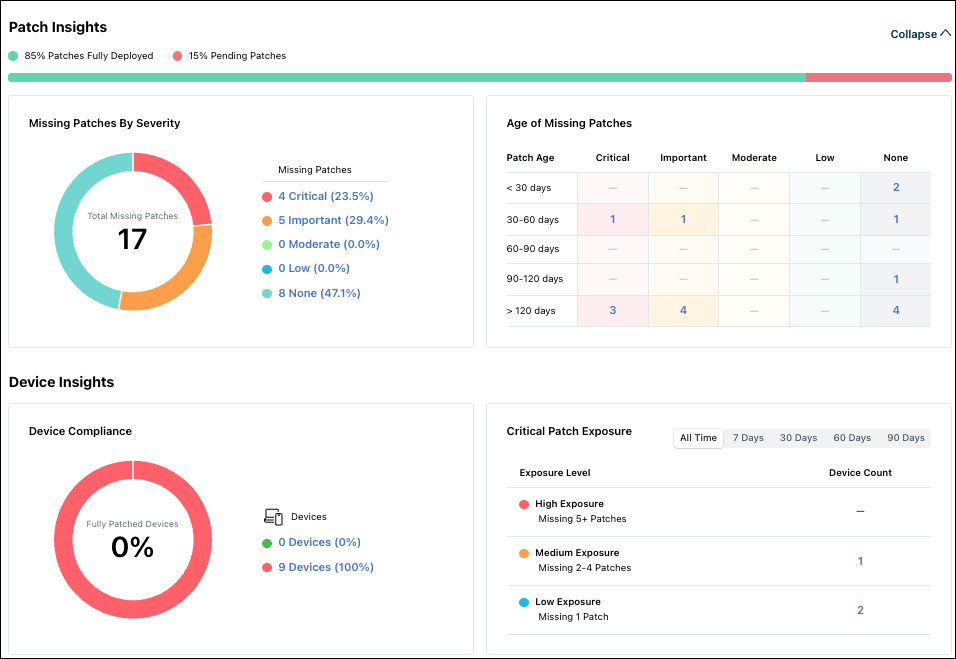
JumpCloud’s Windows Knowledge Base (KB) Management helps ensure your Windows devices stay compliant and secured with the latest patches. The dashboard opens to an Overview and Patch List view that brings Patch Insights and Device Insights together in one place, including your overall patch coverage, missing patches by severity and age, device compliance, and critical patch exposure, before you review the full list of KB updates below. KB updates are codes assigned to software updates, patches, and articles, for example KB2267602, and Microsoft typically releases these on the second Tuesday of every month (known as Patch Tuesday), allowing you to target specific bundles of fixes for deployment.
Prerequisites
- The JumpCloud agent must be installed and running on Windows devices. See Install the Windows Agent
Considerations
- If you do not have any devices enrolled, you must enroll them first. See Add a Device.
- Initial Data Sync - Once a Windows device is successfully enrolled, patch data collection begins automatically as part of the initial backend processing. There may be a short synchronization window before specific KB details are populated and visible within the dashboard. During this period, the dashboard may temporarily show no patch records or indicate that no KB data is available, this is an expected behavior and not a system error.
Accessing Windows KB Management Dashboard
If your data is stored outside of the US, check which login URL you should be using depending on your region. If your organization uses LDAP, RADIUS, or requires firewall allow list configuration, the Fully Qualified Domain Names (FQDNs) will also be region specific. See JumpCloud Data Centers for the URLs, FQDNs, and IP addresses.
- Log in to the JumpCloud Admin Portal.
- Go to Device Management > Patch Management. The Patch Management pageis displayed.
- On the Patch Management page,select Windows tab.
- Click Expand. The Windows Overview and Patch dashboard is displayed.
Filtering Capability
Reset Page Filters
Use this filter to reset the KB list and the graphs present in the Patch Insights and Device Insights sections according to the selected severity in the Global Severity Filter.
Global Severity Filter
A top-level severity filter to the Patch Management dashboard has been designed to provide a unified view of patch status based on specific risk levels. This filter acts as the primary driver for all dashboard data, allowing you to focus on compliance overview on the severities that matter most.
This filter provides multi-select support for the following categories:
- Critical
- Important
- Moderate
- Low
- None
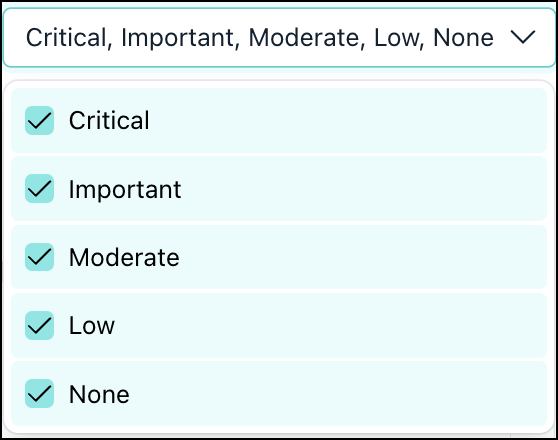
All severities are selected by default.
When one or more severities are removed from the top-level filter, the following components in the Overview and Patch List section updates immediately:
- Patch Insights
- Missing Patches by Severity
- Age of Missing Patches
- Device Insights
- Device Compliance
- Critical Patch Exposure
- KB Listing/Grid
Dashboard Overview
The Windows KB Management dashboard has two primary sections:
- Compliance Summary
- KB List
Compliance Summary
In this section, the following information is displayed:
- **Patch Insights -**This chart visualizes organizational patch coverage. Green indicates the percentage of patches which are fully deployed across all the eligible devices. Red indicates the missing patches across all the eligible devices.
- **Missing Patches by Severity -**Displays the distribution of missing patches, categorized by their severity levels such as Critical, Important, Moderate, Low, and Unrated. Each colored segment of the chart reflects the count of missing patches within that specific severity group. Hovering over any segment shows the total count of missing patches in that segment. Additionally, the percentage and count are showcased separately as legends towards the right of the chart. You can click them and view the respective patches in the KB List table.
- Age of Missing Patches - Displays pending patches grouped by release age buckets and severity such as Critical, Important, Moderate, Low, and Unrated. You can click them and view the respective patches in the KB List table.
- Device insights -
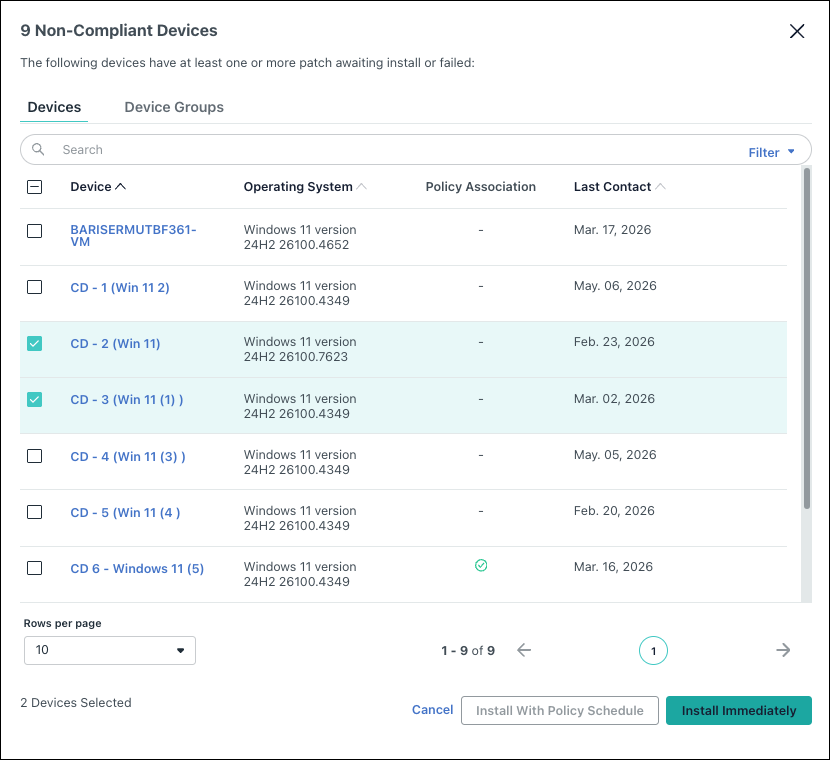
- Device Compliance - Displays the fully patched and not patched devices count. You can click them and view the fully patched or non-patched devices in a pop-up window. On this pop-up window, you can do the following:
- You can select the one or multiple devices and click Install Immediately to initiate the patch installation process.
- Device Compliance - Displays the fully patched and not patched devices count. You can click them and view the fully patched or non-patched devices in a pop-up window. On this pop-up window, you can do the following:
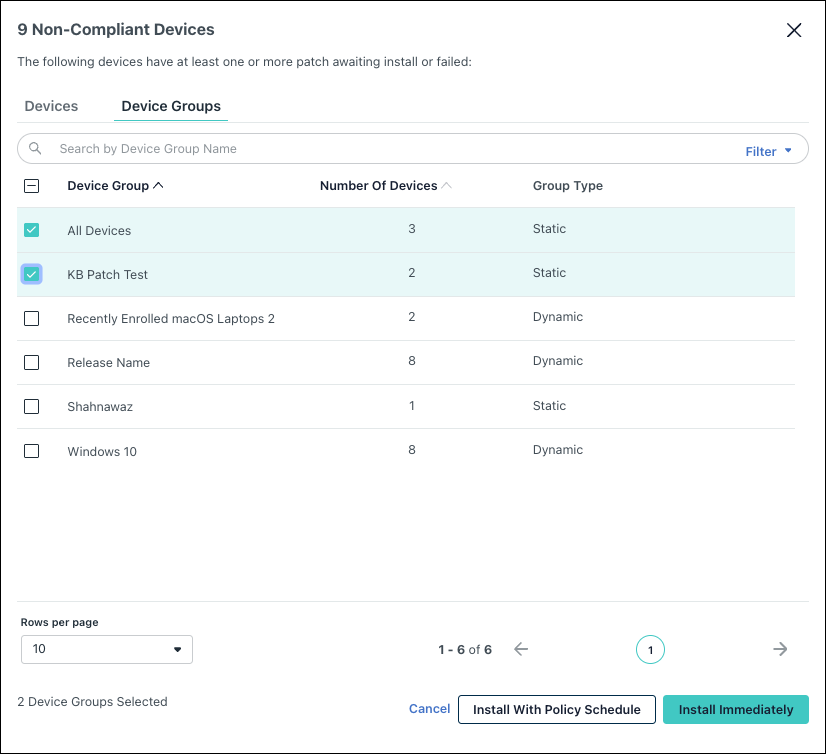
- You can go to the Device Groups tab and select one or multiple device groups and then click Install with Policy Schedule or Install Immediately to initiate the patch installation process.
-
You can click a device name to view the device details.
-
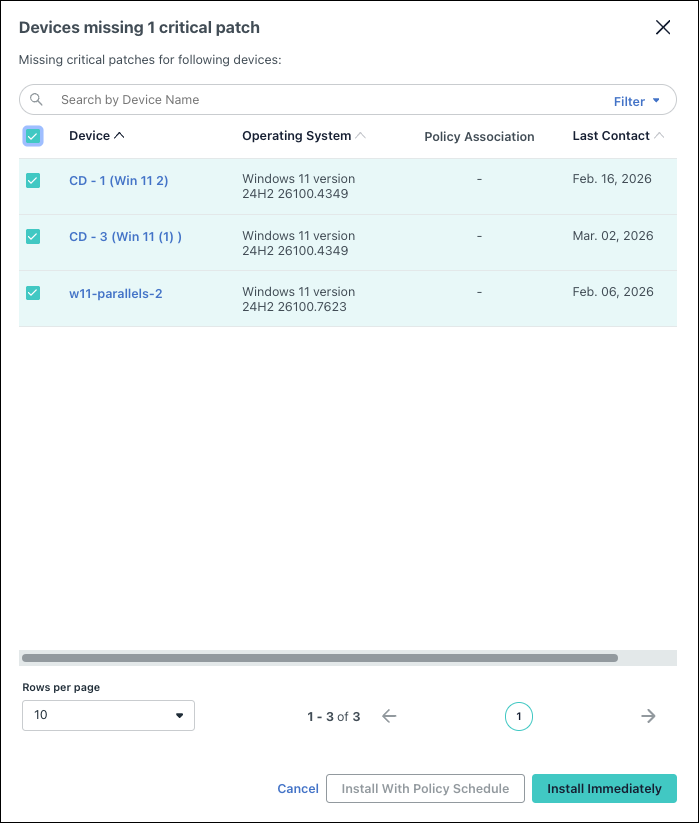
Critical Patch Exposure - Displays devices grouped by the number of missing critical patches grouped under High Exposure, Medium Exposure, and Low Exposure levels. You can click on the device count and view the devices missing the critical patches on a pop-up window. On this window, you can also select the available devices and click Install Immediately to initiate the critical patches installation process.
KB List
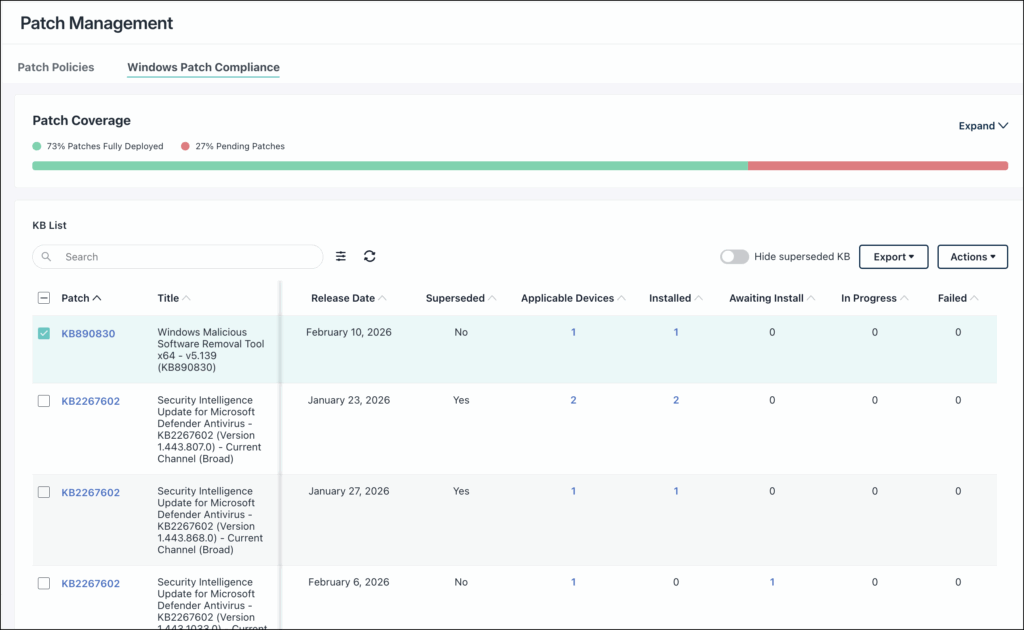
This list displays a list of all KBs aggregated across enrolled Windows devices.
The KB list displays the following:
- KB Number - The unique identifier of the KB. You can click this link to be redirected to the official Microsoft KB page.
- Title/Description - Short description of the KB.
- Classification - Category of the KB such as Security, Quality, Feature, Definition, or Optional.
- CVE Details - Displays the associated Common Vulnerabilities and Exposures (CVEs) identifiers, their severity, and direct links to official references.
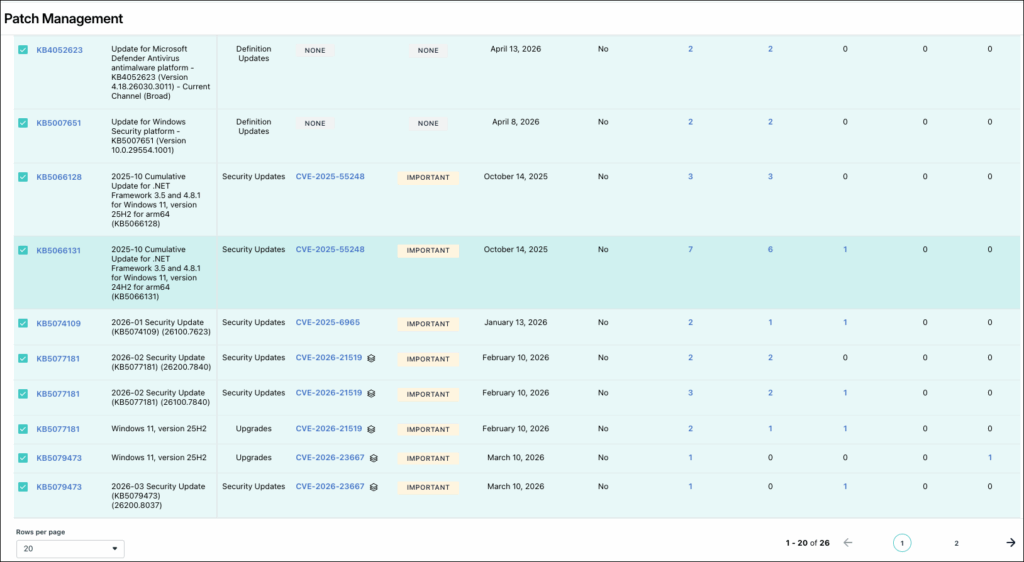
- Severity - Impact of the KB on the device such as Critical, Important, or N/A.
- Release Date - Release date of the KB by Microsoft.
- Superseded - Indicates whether a specific KB is superseded or not.
- Hide Superseded KBs - This checkbox is unchecked by default thereby showing all KBs. If this is checked, all the superseded KB’s are not displayed on the list.
- Available Devices - Number of devices where the KB is applicable.
- Installed - Number of devices where the KB was successfully installed.
- Awaiting Install - Number of devices where KB is applicable but not yet installed.
- In Progress - Number of devices where the KB installation is ongoing.
- Failed - Number of devices where install attempt failed. You can click the count to open a pop-up window which displays the devices and device groups on which the patch installation failed. You can select one or more devices or device groups in their respective tabs and click Retry with Policy Schedule or Retry Immediately to initiate the failed patches installation process.
You can click the device count under the Available, Installed, Awaiting Install, and In-Progress columns and view the device names where the specific KB is applicable, installed, awaiting installation, or failed to install. Clicking the device name would navigate the user to the device specific patch detail page.
Searching KBs
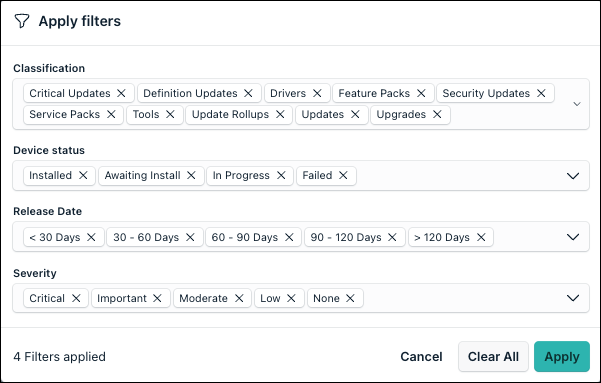
The search feature supports KB titles and CVE numbers. To ensure you are viewing the most current information, use the Manual Refresh icon to update the list.
- Go to the KB List section and search for a specific KB.
- Alternatively, click the Filter icon to narrow down your results. This displays the Filters modal window.
- In the Filters modal window, select your desired options and click Apply.
Exporting KB List
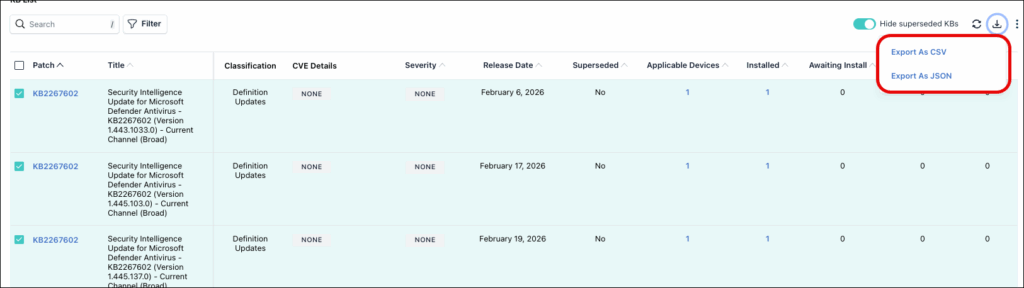
You can export the entire KB list in a CSV or JSON format. To do this:
- Log in to the JumpCloud Admin Portal.
- Go to Device Management > Patch Management.
- Select the Windows Patch Compliance tab.
- In the KB List section, click Export dropdown menu.
- Select Export As CSV or Export As JSON to download the KB list.
Viewing CVE Details
Common Vulnerabilities and Exposures (CVEs) are tied to specific patches and not to individual devices. Patches with available CVE will have the CVE number displayed under the CVE Details column. To view the CVE details, do the following:
- Log in to the JumpCloud Admin Portal.
- Go to Device Management > Patch Management.
- Select the Windows Patch Compliance tab.
- In the KB List section, search for specific CVE number and click on it. The CVE details is displayed.
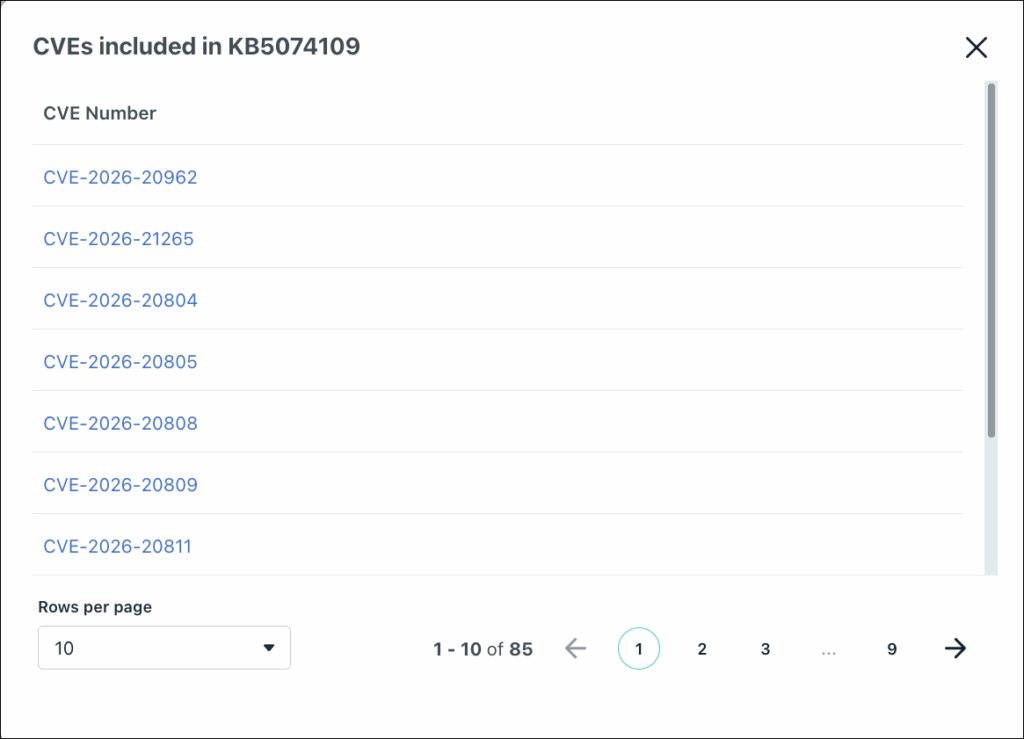
- If a KB includes additional CVEs, the
 icon is displayed. Hover over this icon to view the additional CVEs.
 - Click View More to view the entire list of CVEs included in the KB.
Approving KBs for Installation
You can select and approve a single or multiple KBs for installation on a single or multiple devices. Approval actions are only available for devices where the KB status is Awaiting Install.
Approving Single KB
You can use the following method to approve a single KB for multiple devices:
- Log in to the JumpCloud Admin Portal.
- Go to Device Management > Patch Management.
- Select the Windows Patch Compliance tab.
- In the KB List, select the specific KB you want to approve.
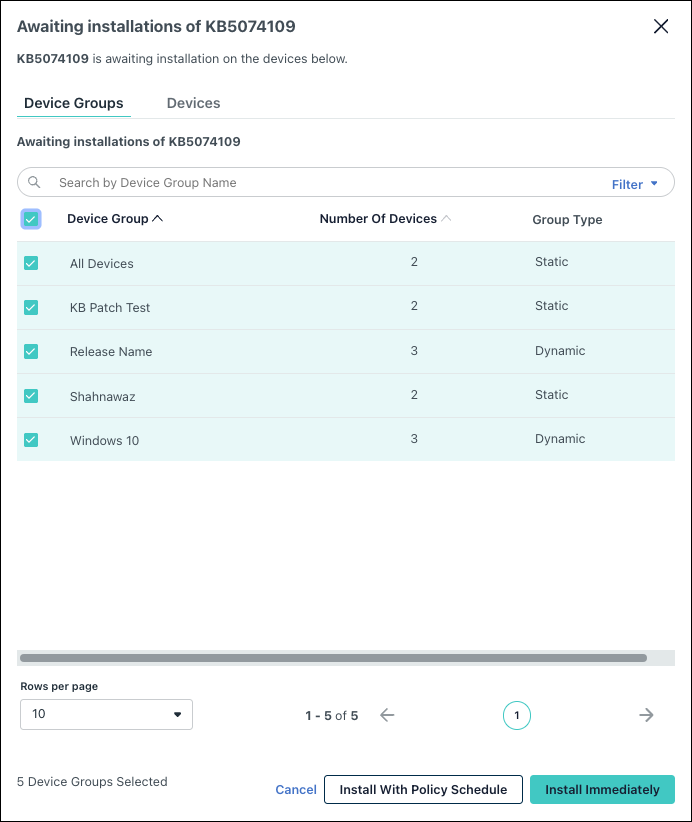
- Click the count in the Awaiting Install column for a specific KB. The ****Awaiting Installation modal window is displayed.
- On the Awaiting Install modal window, select the target devices or click Select All to select of the available devices.
- Click Install Immediately or Install with Policy Schedule.
- When Install with Policy Schedule is selected, the system initiates updates for devices with an associated policy and displays a success message.
- On selecting Install Immediately, the Install Immediately window is displayed. On this window, select one of the following options:
- All selected devices
- Only devices with no policy associated
- Only devices with policy associated
- Click Install. A success message is displayed indicating the beginning of KB installation.
Approving Multiple KBs
To select multiple KBs form the KB List, do the following:
- Log in to the JumpCloud Admin Portal.
- Go to Device Management > Patch Management.
- Select the Windows Patch Compliance tab.
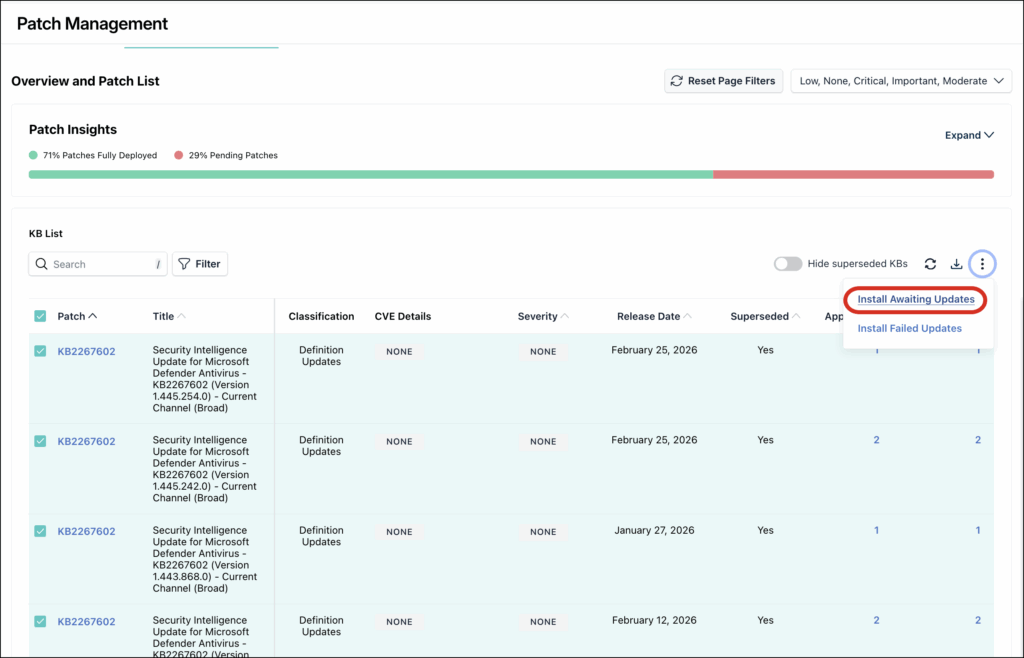
- In the KB List, select the KBs you want to approve.
- From the Actions dropdown menu, select Install Awaiting Updates. The Install Awaiting Updates modal window is displayed.
- Select the target devices or click Select All to select of the available devices.
- Click Install Immediately or Install with Policy Schedule.
- When Install with Policy Schedule is selected, the system initiates updates for devices with an associated policy and displays a success message.
- If the selected devices are not associated with a policy schedule, click Install Immediately. This displays the Install Immediately window.
- On this window, select one of the following options:
- All selected devices
- Only devices with no policy associated
- Only devices with policy associated
- Click Install. A success message is displayed indicating the beginning of KB installation.
Retrying Installation of Failed KBs
To install failed KBs, do the following:
- Log in to the JumpCloud Admin Portal.
- Go to Device Management > Patch Management.
- Select the Windows Patch Compliance tab.
- In the KB List, click the count in the Failed column for the KBs you want to re-approve. The Failed Installation modal window is displayed.
- On this modal window, select the target devices or click Select All to select of the available devices.
- Click Retry Immediately or Retry with Policy Schedule.
- When Retry with Policy Schedule is selected, the system initiates updates for devices with an associated policy and displays a success message.
- If the selected devices are not associated with a policy schedule, click Retry Immediately. This displays the Retry Immediately window.
- On this window, select one of the following options:
- All selected devices
- Only devices with no policy associated
- Only devices with policy associated
- Click Install. A success message is displayed indicating the beginning of KB installation.
Installing Missed Critical Patches
- Log in to the JumpCloud Admin Portal.
- Go to Device Management > Patch Management.
- Select the Windows Patch Compliance tab and go to Compliance Summary section.
- In the Compliance Summary section, go to the Devices with Pending Critical Patches tile.
- From this tile, you can select a timeline from the dropdown menu and click on the Devices Count. This displays the missing critical patch modal window.
- In this modal window, you can search by device name or use the Filter option to narrow down your search.
- Select one or more devices and click Install Immediately. This displays the Install Immediately modal window.
- From this modal window, select the desired option and click Install to initiate the installation of the missing patches.
Was this information helpful?