Troubleshoot: Active Directory Integration (ADI)
If you experience an issue when performing an Active Directory Integration (ADI) with JumpCloud, review these common resolutions.
[[[JC-FAQ-ACCORDION-0]]][[[JC-FAQ-ACCORDION-1]]][[[JC-FAQ-ACCORDION-2]]][[[JC-FAQ-ACCORDION-3]]][[[JC-FAQ-ACCORDION-4]]][[[JC-FAQ-ACCORDION-5]]][[[JC-FAQ-ACCORDION-6]]][[[JC-FAQ-ACCORDION-7]]][[[JC-FAQ-ACCORDION-8]]][[[JC-FAQ-ACCORDION-9]]]
Random issues with users’ passwords not syncing after they change them.
Random issues with users’ passwords not syncing after they change them
Check the password complexity settings in JC match those set in AD. This can happen when the user sets the password in JC with different complexity settings, and then it is rejected in AD due to it not meeting the AD's password complexity settings.
New AD users are not importing into JumpCloud
New AD users are not importing into JumpCloud
There is a conflict in global settings and user default settings. Change Users >Settings > Default Password Authority to None (JumpCloud).
I am getting an error when pasting my connect key into the AD Sync Agent installer.
I am getting an error when pasting my connect key into the AD Sync Agent installer
{"error":"rpc error: code = NotFound desc = failed to get agent by connect key: no agent found for hash of the given connect key", "level":"error","msg":"registration failed\n", "time":"2025-03-20T12:33:59.188124Z"}
As of AD Sync Agent 4.33.0, administrators must use a base64 Connect Key. If you are using an older version of the AD Sync Agent (below 4.33.0), the installer only stores the first 50 characters of the Connect Key, which results in the above error. To resolve this issue, do one of the following:
- Upgrade to AD Sync Agent 4.33.0 or higher.
- Manually edit the Windows Registry (
Computer\HKEY_LOCAL_MACHINE\SOFTWARE\JumpCloud\AD Integration Sync Agent\connect_key) and paste the entire base64 Connect Key. Then, restart the JumpCloud AD Integration Sync Agent service.
The AD Import Agent is stuck in a startup loop.
The AD Import Agent is stuck in a startup loop
The AD Import agent log file will be similar to below:
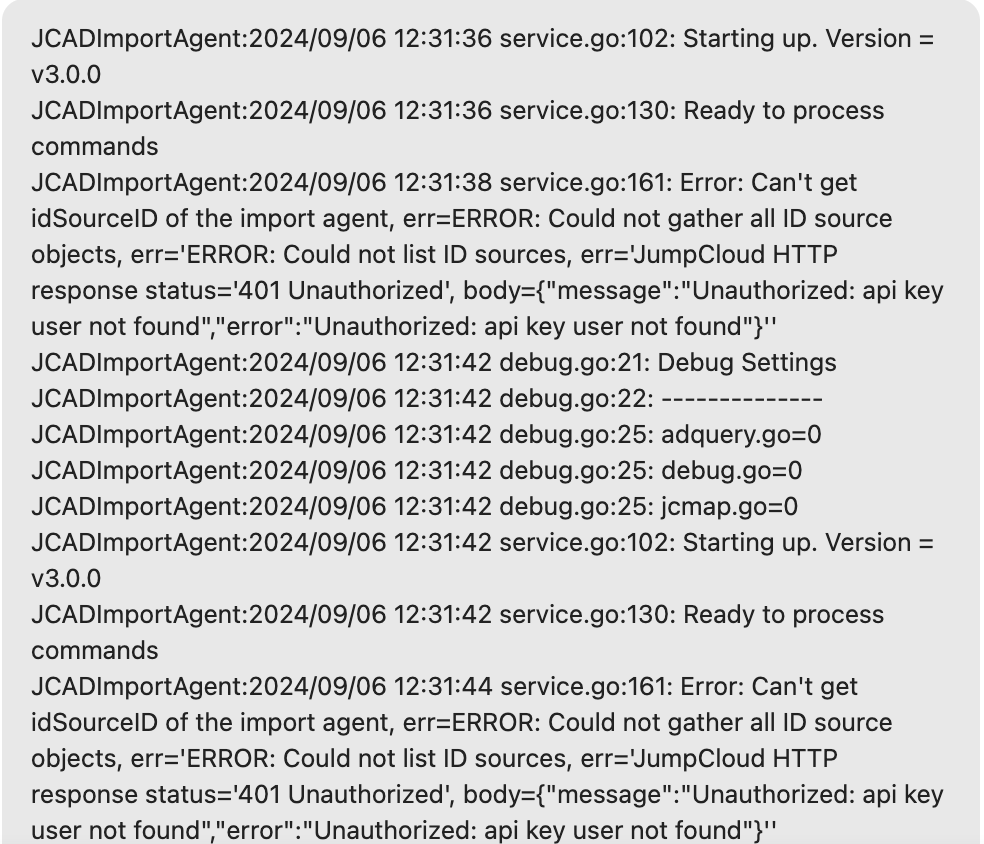
Resolution: Rotate the API Key on the AD Server
The AD Import Agent log file can be found here:
C:\Windows\Temp\JumpCloud_AD_Integration.log
- Log in to the JumpCloud Admin Portal and view the Import agent(s) within Domain Agents tab.
- Identify each broken connector.
- Retrieve the API key you stored for the ADI admin account.
It is recommended to use a dedicated administrator account specific to ADI.
- On each impacted AD server:
- Log in to the server with a local admin or AD domain admin account.
- Replace the default value for HKLM\SOFTWARE\JumpCloud\AD Integration Import Agent\api_key in the registry.
- Restart the JumpCloud AD Integration Import Agent service.
- In the JumpCloud Admin Portal, view the Import agents(s) within the Domain Agents tab and verify they are active.
- Check the logs to ensure that the error does not reoccur.
I am getting an “insufficient privileges” error when trying to install or upgrade the ADI Sync Agent.
I am getting an “insufficient privileges” error when trying to install or upgrade the ADI Sync Agent
This error typically indicates an issue with the AD Sync service account, and not the permissions of the user running the installer.
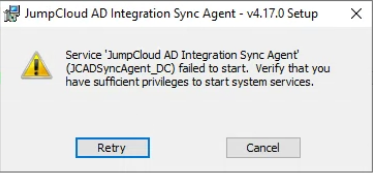
Resolution: Open the ADI Sync log file at C:\Program Files\JumpCloud\AD Integration\JumpCloud AD Sync\JumpCloud_AD_Sync.log. You may see the following error in the log:
Invalid password error: "error":"could not bind user to LDAP provider: LDAP Result Code 49 "Invalid Credentials":
- Update the stored password for the AD Sync Agent service account.
- Ensure the service account being used by the AD Sync Agent is enabled, and ensure the password for this account is correct
- Open the Windows Registry (regedit.exe)
- Browse to ‘Computer\HKEY_LOCAL_MACHINE\SOFTWARE\JumpCloud\AD Integration Sync Agent\ldap’
- Edit the value for the bind_password entry and enter in the correct password for the service account. Once the service starts it will update the ‘bind_password_encrypted’ field with the new hashed password and clear the plain text password from the ‘bind_password’ field
- Open Windows Services (services.msc) and locate the ‘JumpCloud AD Integration Sync Agent’ service
- Start the service and then click Retry on the AD Sync Agent installer to allow the installation to complete successfully
I’ve uninstalled the AD Sync Agent, but it’s still partially installed and I can’t remove it via Add/Remove programs.
I’ve uninstalled the AD Sync Agent, but it’s still partially installed and I can’t remove it via Add/Remove programs.
- If it is still in place, remove the JumpCloud AD Integration Sync Agent service:
- Open an administrative Command Prompt or PowerShell prompt
- In the prompt type the following command to stop the Sync Agent service if it is running:
net stop “JumpCloud AD Integration Sync Agent”
- You should see the message - The JumpCloud AD Integration Sync Agent service was stopped successfully
- In the same prompt type the following command to remove the service:
sc delete “JumpCloud AD Integration Sync Agent”
- Delete the associated registry entry:
HKLM\SOFTWARE\JumpCloud\AD Integration Sync Agent
- Remove the Sync Agent installation folder by deleting the following folder:
C:\Program Files\JumpCloud\AD Integration\JumpCloud AD Sync
Once the service, the registry entries and the installation folder have been removed, you should be able to reinstall the JumpCloud Active Directory Integration Sync agent.
My ADI Agents are not installing or registering.
My ADI Agents are not installing or registering
Ensure you have whitelisted all the necessary URLs and tested gRPC traffic as listed in the ADI Network Requirements.
User and/or password synchronization is failing.
User and/or password synchronization is failing
Ensure you have whitelisted all the necessary URLs and tested gRPC traffic as listed in the ADI Network Requirements.
I am getting a “msg”:”reconnecting directives stream” in the JumpCloud_AD_Sync.log
I am getting a “msg”:”reconnecting directives stream” in the JumpCloud_AD_Sync.log
The "directives stream" is the long-lived connection (gRPC) the agent maintains with JumpCloud’s servers to receive real-time commands (like "sync this user now").
Resolution: Ensure your firewall allows outbound traffic to the following endpoints on Port 443:
adbridge.jc-proxy.apps.a-demo.orgadbridge-kickstart.jc-proxy.apps.a-demo.orgagent.jc-proxy.apps.a-demo.org
Also, follow the network requirements guide to bypass this Configure Active Directory Integration (ADI)
I am getting an ERROR: queryAO() returned non user or group object (type-2) for query CN-User ,OU-Staff,OU-User Accounts, OC, DC-org
I am getting an ERROR: queryAO() returned non user or group object (type-2) for query CN-User ,OU-Staff,OU-User Accounts, OC, DC-org
AD to JC group import is not working. In the JC portal, the group does not sync.
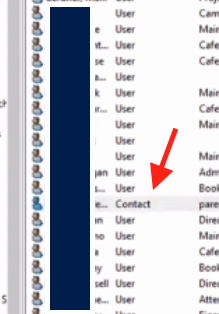
Resolution: AD Import fails due to a contact "objects" in the ADI Security Group. Remove the contact from the group.
I am getting a ‘Sync status is not available for this directory type’ message for the AD users.
I am getting a ‘Sync status is not available for this directory type’ message for AD users.
Symptoms: This message appears in the Directories section of an AD Delegated JC Managed user
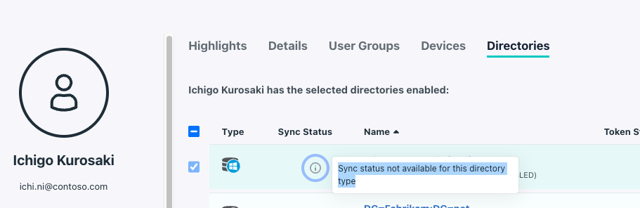
Resolution: The message is expected behavior for an Active Directory sync user. Because the status is managed by the agent on customer’s system, it is not designed to be displayed in the JumpCloud Admin Console. This message will not interfere with ADI or the functionality of its users
I am seeing the following error in my logs: JCADImportAgent: jcmap.go:605: Could not add a user to JumpCloud, err=’ERROR: Could not post new JCUser object, err=’JumpCloud HTTP response status=’400 Bad Request’, body={“message”:”username must start with a letter, be 30 characters or less, and contain only valid Unix Characters (letters, numbers, ‘-‘, ‘.’, and ‘_’)”}”
I am seeing the following error in my logs: JCADImportAgent: jcmap.go:605: Could not add a user to JumpCloud, err=’ERROR: Could not post new JCUser object, err=’JumpCloud HTTP response status=’400 Bad Request’, body={“message”:”username must start with a letter, be 30 characters or less, and contain only valid Unix Characters (letters, numbers, ‘-‘, ‘.’, and ‘_’)”}”
Symptoms: When attempting to import users from AD to JumpCloud, you may encounter the above error message in the logs.
UserFieldMapping
This setting controls the mapping of JumpCloud’s username field from AD on import. This can be set to either map JumpCloud usernames to “sAMAccountName” or “userPrincipalName”. The default setting for all new installations of AD Import is to map the JumpCloud username to “sAMAccountName”. For more information on user field mapping, please refer to the JumpCloud documentation.
Resolution: To resolve this issue, check the sAMAccountName of the users you are attempting to import. The following criteria must be met:
- The username must start with a letter.
- The username must be 30 characters or less.
- The username may only contain valid Unix characters, which include letters, numbers, hyphens (
-), periods (.), and underscores (\_).
If the sAMAccountName does not meet these requirements (e.g., it starts with a number or contains invalid characters), you will need to modify it. Remove any invalid prefixes or characters from the sAMAccountName in Active Directory before attempting the import again. Once the usernames are corrected, retry the import process, and the users should successfully import into JumpCloud.
Was this information helpful?