SaaS Management: Fal.ai Connector
JumpCloud® AI & SaaS Management gives you visibility and control over shadow IT, including AI and SaaS app usage, within your org. Connectors detect shadow IT without adoption of a browser extension and provide a significant increase to valuable usage and security insights.
The Fal.ai connector retrieves aggregate AI model consumption and cost statistics by polling the platform's model tracking API endpoints. Using periodic polling for regular hourly updates, it captures centralized resource utilization rows to keep organization expenditure records accurate and up-to-date.Fal.ai
- Consumption: Provides organization-wide aggregate usage and cost details broken down by active environment API keys.
Prerequisites:
- You must have an active Fal.ai account context with an established billing profile.
- You must be an admin in your Fal.ai organization or team workspace to generate token reporting credentials.
Considerations:
- Dashboard Metrics: This connector displays active AI models and their total usage costs (USD). Raw token counts and individual user profiles are not available due to Fal.ai API limitations.
- Web Interface Activity: Any activity executed directly from the Fal.ai web interface rather than through an automated API key will display under the 'User key' label.
- Sync Time: Based on your organization’s size, the initial data collection may take up to an hour.
Configuring Fal.ai
- Log in to your Fal.ai Dashboard.
- Go to the left sidebar menu and select API Keys.
- Click Add key.
- In the New key secret configuration dialog window, set the Scope dropdown menu to Admin.
- In the Name input field, enter a unique, recognizable label for the connector token.
- Click Create Key.
- Copy the generated string under the Keep it safe prompt.
For security reasons, you'll only see the API Key once. Save it in a secure location before closing the window.
Configuring JumpCloud
- Log in to the JumpCloud Admin Portal.
If your data is stored outside of the US, check which login URL you should be using depending on your region. If your organization uses LDAP, RADIUS, or requires firewall allow list configuration, the Fully Qualified Domain Names (FQDNs) will also be region specific. See JumpCloud Data Centers for the URLs, FQDNs, and IP addresses.
:::
-
Go to Access > AI & SaaS Management > Settings.
-
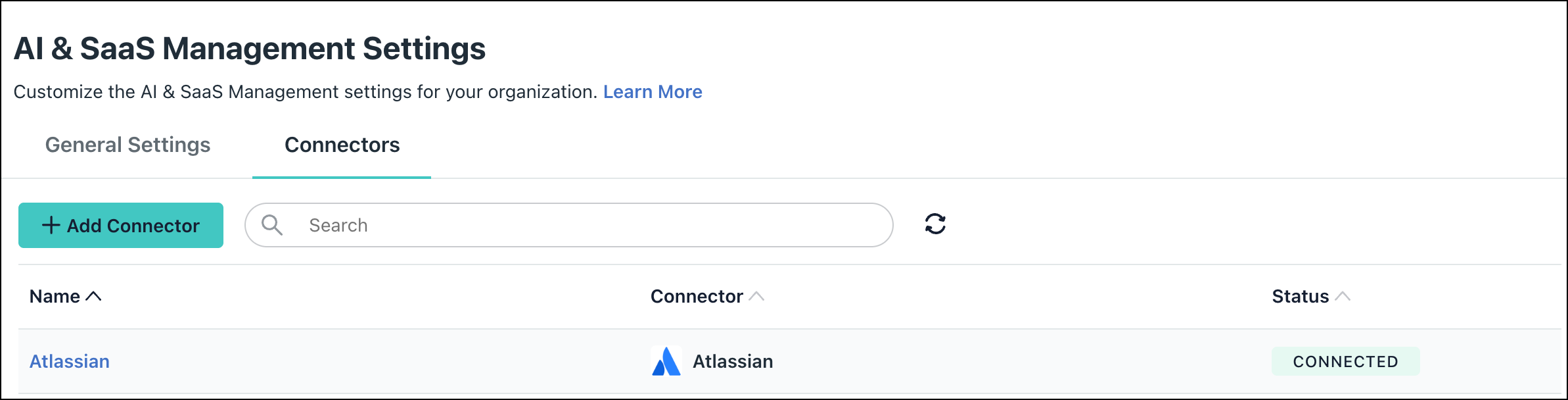
Under AI & SaaS Management Settings, click the Connectors tab, then click + Add Connector.
-
Click the Fal.ai connector.
-
Enter the following information:
- The Connector name.
- The API Key value copied from your Fal.ai dashboard panel.
-
Click Connect and then Save Connector. You will now see Fal.ai listed in your active workspace dashboard integrations.
If permissions are accidentally removed, or if the admin who configured left your organization, the connector will stop working and you will be prompted to Reconnect.

Required Permissions
Admin Scope Access: This connector requires an API key with the Admin scope to collect your organization's usage and logging streams.
Uninstall/Remove
-
On the Connector’s detail page, click on Delete Connector and follow the prompts.
-
To permanently break data ingestion access keys from pulling external statistics, log into your platform console, locate the designated integration reporting key rows in your dashboard, and delete the API Keys string directly from your workspace profile view.
Was this information helpful?