Create a Device Level Mac Software Update Enforcement Policy
The Software Updates Enforcement policy uses Apple’s Declarative Device Management (DDM) to ensure your devices run a specific macOS version. Unlike standard automatic update policies that generally install the latest available releases, this standalone policy lets you target and enforce a specific OS version or build number.
Features
- Version Control -Target a specific OS version or build number. If a build is not provided or contradicts the OS version, the policy enforces the target OS version.
- User Notifications - Users receive daily reminders that escalate in frequency as the enforcement deadline approaches. Once the deadline is reached, the update becomes mandatory.
Prerequisites
- This policy is supported on Macs running macOS 14 Sonoma and later.
- Apple Mobile Device Management (MDM) must be configured for your organization and Macs must be enrolled in JumpCloud MDM. See Set up Apple MDM.
Considerations
- Updates are enforced using the SoftwareUpdateEnforcementSpecific DDM configuration. See Apple’s developer documentation for SoftwareUpdateEnforcementSpecific to learn more.
- This policy doesn't support deploying beta build versions.
Creating the Policy
To create a Software Update Enforcement policy for Mac computers, do the following:
Selecting the Policy Template
- Log in to the JumpCloud Admin portal.
If your data is stored outside of the US, check which login URL you should be using depending on your region. If your organization uses LDAP, RADIUS, or requires firewall allow list configuration, the Fully Qualified Domain Names (FQDNs) will also be region specific. See JumpCloud Data Centers for the URLs, FQDNs, and IP addresses.
- Go to Device Management > Policy Management. The Policy Management page is displayed.
- On the Policy Management page, click +Add New.
- Select Device Policy to assign the policy to devices and device groups. On the New Device Policy page:
- Select the macOS tab.
- Search and select the required policy and click Configure. The Details tab of the policy is displayed.
- On the Details tab, configure the required policy configuration settings.
- (Optional) In the Policy Name field, enter a new name for the policy or keep the default. Policy names must be unique.
- (Optional) In the Policy Notes field, enter details such as creation date of the policy, and information on testing and deployment of the policy.
Configuring the Policy
- Click General Settings to expand the section.
- Under Target OS Version, enter the specific macOS version you’d like to install or select from the dropdown. This must be the full version value, for example 26.1.
- (Optional) Under Target Build Version, enter the specific build version of the OS to install or select from the dropdown, for example 21E219.
We recommend leaving the Target Build Version blank because macOS automatically determines the appropriate build for the Mac's hardware. See Apple’s Software Lookup Service to view a full list of OS and build versions. You can also reference this third party tool SOFA - Simple Organized Feed for Apple Software Updates.
- Under Enforcement Deadline, specify the time when the device will force install the update.
- Under Details URL, enter the URL (starting with
http://orhttps://) to display in System Settings > General > Software Update. This link directs users to more information about software updates (for example, your company's intranet page, device use policy, or a link to Apple's documentation).
Applying the Policy
- (Optional) Select the Policy Groups tab. Select one or more policy groups where you want to add this policy.
- Select the Device Groups tab. Select one or more device groups where you want to apply this policy. For device groups with multiple OS member types, the policy only applies when a user logs into a supported Mac computer that is enrolled in Apple MDM.
- Or, select the Devices tab. Select one or more devices whom you want to add this policy to.
- Click Create Policy. A success message is displayed indicating the completion of policy creation.
Viewing Policy Status
- Select the Statustab.
- To see the last Result Log for a device where this policy is applied, click view.
- If any errors occur, they're listed inExit Status. If you have an Exit Status of 0, no errors occurred when applying or enforcing this policy.
Verifying Policy Application on Devices
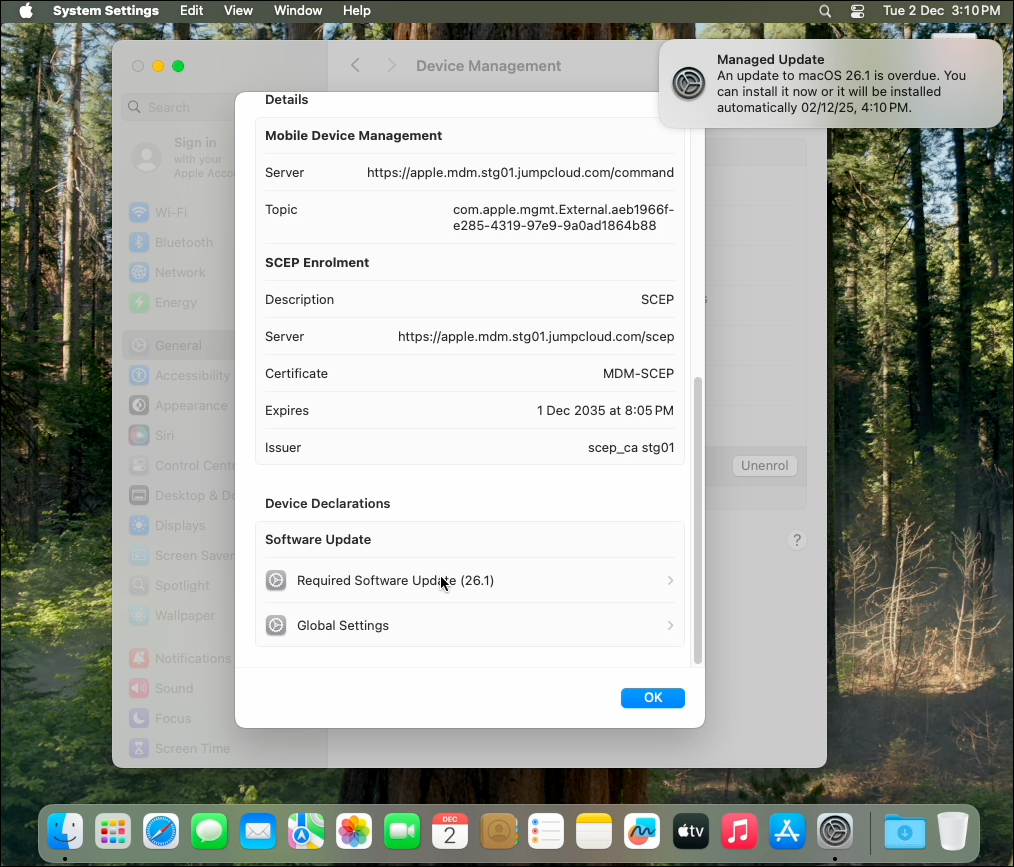
When policy declarations are delivered to Macs, they will appear in System Settings.
To verify that the policy has applied:
- On the Mac, go to System Settings> General > Device Management.
- Under Device (Managed), scroll to the bottom of the list and click MDM Enrollment Profile.
- The MDM Enrollment Profile modal displays. Scroll to the bottom of the list. Under Device Declarations, Software Update appears if the policy has applied.
- The specific version sent via the policy appears next to Required Software Update, for example (26.1).
Was this information helpful?