Configuring Conditional Access Policies For Admin Portal
Conditional Access Policies (CAP) is a security strategy that provides granular control over who can access resources, under what circumstances, and from where. CAP can be configured for Admin Portal as a resource. All the conditions that apply to User Portal or SSO Applications are applicable, allowing higher security and least privilege access control for Admins.
It is highly recommended to configure CAP for Admin Portal to ensure the highest security for your crucial resources.
Admins in your JumpCloud org can be of the following two types:
- Standalone Admins with their own credentials and Multi-Factor Authentication (MFA).
- Users with admin roles assigned to them - either by creating Admins from existing users or editing existing standalone Admins to their matching users in JumpCloud.
- One credential for users and Admins - Allowing single credential login and management.
- All Advanced MFA options are now available apart from TOTP.
CAP for the admin portal will only apply to Admins who are bound to their users.
MFA Factor Enrollment
When you configure a CAP that requires a specific MFA factor:
- MFA already enrolled - If the user/admin has already enrolled the required MFA factor, they are prompted to complete MFA during Admin Portal login. Access is granted only after successful verification.
- MFA not enrolled - If the user/admin has not enrolled the required MFA factor, they cannot proceed directly into User Portal/Admin Portal. They are first guided through MFA enrollment, and they can sign in only after successful enrollment.
JumpCloud Go enrollment guidance
JumpCloud Go is not yet available in the standard MFA enrollment flow. If JumpCloud Go is the required factor, follow the below steps until in-flow enrollment is supported:
- Log in to the JumpCloud User Portal.
- Register their device for JumpCloud Go from the User Portal (if not already registered).
- From the User Portal, click Launch Admin Portal.
This ensures the device is registered for JumpCloud Go before the admin attempts a CAP-protected Admin Portal login.
Configuring a Conditional Access Policy for Admin Portal
To configure a conditional access policy for Admin portal:
-
Log in to the JumpCloud Admin Portal.
-
Go to SECURITY MANAGEMENT > Conditional Policies.
-
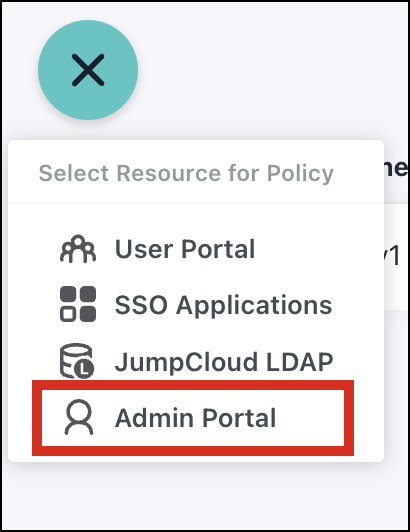
From the list view, click ( + ), then select Admin Portal as the resource.
-
Enter the Policy Name and Description.
-
Under Assignments, click All Admins to add all the users who are Admins.
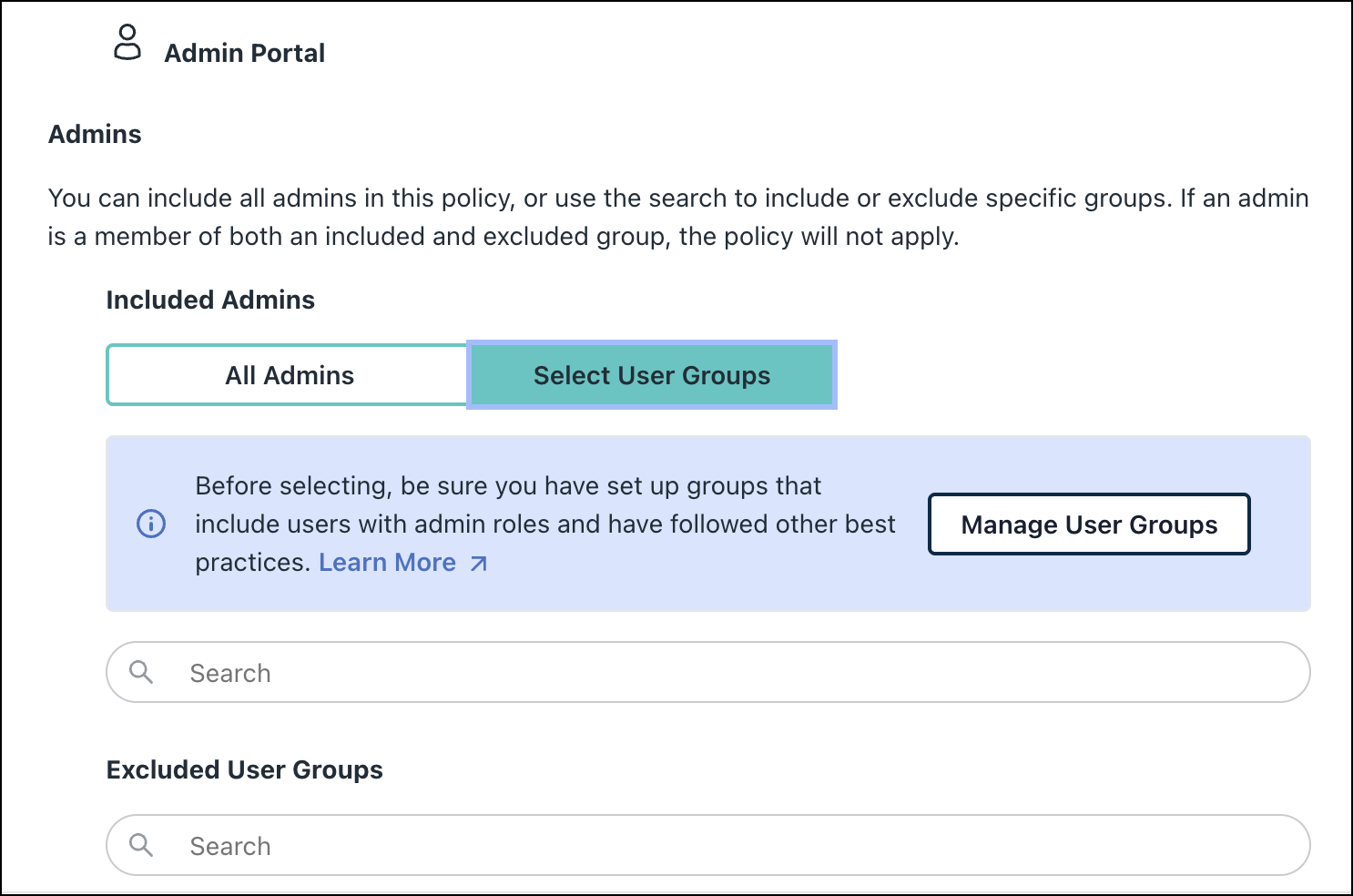
If you have a mix of standalone Admins and Admins who are linked to their users while selecting **All Admins**, the policy will still apply only to the users with Admin roles assigned to them.
Alternatively, click Select User Groups if you want to assign a policy only to a specific group of Admins. After selecting this option**,** you can also click Manage User Groups to create an Admins Only user group. See Creating a User Group for Users With Admin Roles to learn more.
To assign Admin roles to an existing user, see Assigning an Admin Role to a User to learn more. Search and exclude user groups as required.
Search and exclude user groups as required.
- Apply conditions as required.
- Under Action, configure the following options:
- If you want to require MFA, set Access to Allowed and set Authentication to Password + MFA. Then select the preferred MFA factors. See Choosing Multi-factor Authenticators in Conditional Access Policies to learn more.
- If you want to deny access, set Access to Denied. Customize the conditional access deny message for users as required.
For Admin Portal CAP, the default action is **Deny**.
Note: Admin Portal CAP applies only to linked admins. Standalone admins are not supported by Admin Portal CAP. See To update an existing admin with a matching user and Assigning an admin role to a user to learn more.
- Click Create Policy.
You have successfully created a conditional access policy for Admin Portal.
Was this information helpful?